Business Cards / 14 min
How To Prepare A Business Card File In Word Before Printing
A Dubai and UAE practical guide for preparing business-card files in Microsoft Word: size, margins, text boxes, logo quality, PDF export and proof checks.
Published / Updated
By BizBee. Factual review: BizBee operations.
Short answer
You can prepare a simple business-card file in Word for a Dubai or UAE print enquiry, but it must be set up carefully: choose the final card size or correct template, keep text inside safe margins, use sharp logos, avoid crowded text boxes, export to PDF and inspect the PDF at actual size. Word is acceptable for simple cards, but complex or premium cards should usually be rebuilt in a design tool.
When Word is good enough
Word is acceptable for simple, text-led cards: temporary staff cards, appointment cards, basic contact cards and straightforward layouts with a logo and clear details.
It is weaker for edge-to-edge artwork, complex bilingual layouts, advanced typography, special finishes and cards where exact production control matters. Word is a document tool first, not a professional card-layout tool.
If the card represents a premium brand or high-value sales moment, consider having the design rebuilt properly before printing. Saving design cost can become expensive if the printed card feels unprofessional.
Set the correct size before designing
Do not design a business card floating on an A4 page unless the template is clearly built for that purpose. Set the final card size or use a template with known dimensions.
If the card will be double-sided, create both sides clearly. Label front and back or export them in order so the print team does not have to guess.
Keep backgrounds and borders away from risky edges unless you understand bleed. Word can make edge-to-edge artwork difficult, so simple layouts are safer.
Size, bleed and safe area are part of the main print guide.
Keep text inside a safe area
Word text boxes can shift, wrap or behave differently after export. Keep names, phone numbers, emails and QR prompts comfortably away from the trim edge.
Avoid trying to fit too much information. If the card has a long email, several phone numbers, multiple social handles and a slogan, something will become too small.
If you need bilingual Arabic and English content, give both languages enough room. Do not shrink one language until it becomes unreadable.
Decide what belongs on the card before fitting it into Word.
Use high-quality logos and images
Do not use a tiny logo copied from WhatsApp, a screenshot from Instagram or a low-resolution image pulled from a website. These can look acceptable on screen and blurry in print.
Use the highest-quality logo file available. If the logo has text, check it at actual card size. Small logo text can become unreadable after export.
If the design uses photos, gradients or heavy colour, Word may not be the best tool. Ask for advice before assuming the exported PDF will print like the screen preview.
Finish choice can make image quality more obvious.
Export to PDF and inspect the PDF, not the Word file
The exported PDF is the approval file. Open it separately after export and check the card at actual size. Do not approve based only on the editable Word document.
Check whether fonts changed, spacing shifted, lines moved, icons blurred or the QR code became too small. If anything looks wrong in the PDF, fix the Word document and export again.
Send the PDF for quote. If you want BizBee to make small checks or adjustments, send the Word file too, but make clear which PDF represents the intended proof.
Use the proof checklist once the PDF is exported.
Common Word mistakes before printing
The biggest mistakes are designing at the wrong size, using low-resolution logos, placing text too close to the edge, sending only a Word file, using fonts that do not export cleanly and forgetting to include the back side.
Another common issue is using borders near the edge. Even a tiny cutting shift can make border thickness look uneven. If you are not confident with bleed and trim, avoid tight border designs.
A Word card can still print well if it is simple, clean and checked carefully. The danger is pretending Word gives the same control as professional design software.
Typography mistakes are common in Word card files.
Visual proof
Word setup diagram
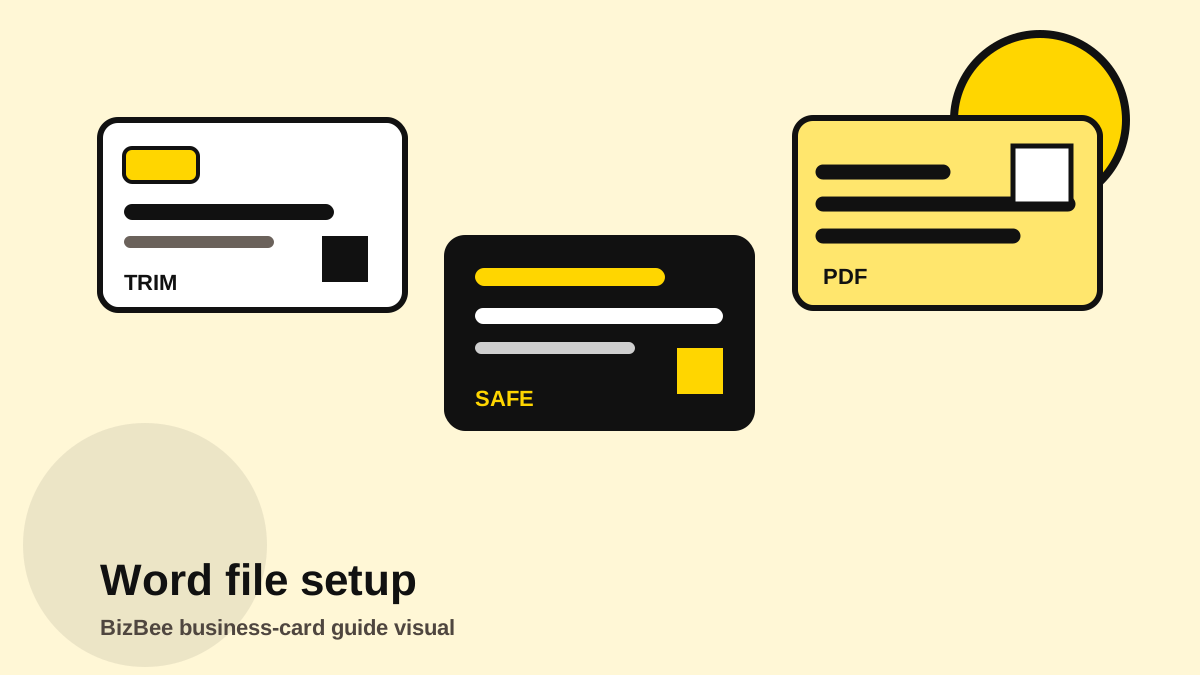
Show safe margin, trim edge, QR area and logo zone so non-designers can understand print risk.
Word file print-readiness checklist
- - Set final card size or use a correct template.
- - Keep all text inside safe margins.
- - Use high-resolution logos, not screenshots.
- - Avoid edge borders unless bleed is handled correctly.
- - Export to PDF and inspect the PDF at actual size.
- - Send the PDF, and include the Word file only if edits may be needed.
Frequently asked questions
Can I print business cards made in Word?
Yes, simple cards can work if the size, margins, logo quality and PDF export are checked carefully.
Should I send Word or PDF for printing?
Send the final PDF for approval. Include the Word file only if edits may be needed.
Why is Word risky for business cards?
Word can shift layout, mishandle fonts and make bleed/safe-area control harder than design software.
Can Word handle double-sided cards?
Yes, but front and back must be clearly separated and exported in the correct order.
Send your Word card for checking
If you built the card in Word, send the exported PDF and original Word file. BizBee can flag obvious print-readiness issues before quoting.
Send a business-card enquiryNext step
Attach both the exported PDF and editable Word file if you want a basic print-readiness review.
Send your Word card for checking